

Description
ITS recently completed security updates that have resulted in issues for some users – repeated requests for Duo logins when attempting to access Microsoft apps.
If you are experiencing this issue, ITS recommends logging out of all of your Microsoft accounts simultaneously in order to refresh your settings. Doing this will require you to log back into all of your Microsoft and third-party O365 connected apps, such as the Zoom calendar connector, but should prevent the repeated Duo requests from occurring.
How to log out of your O365 apps
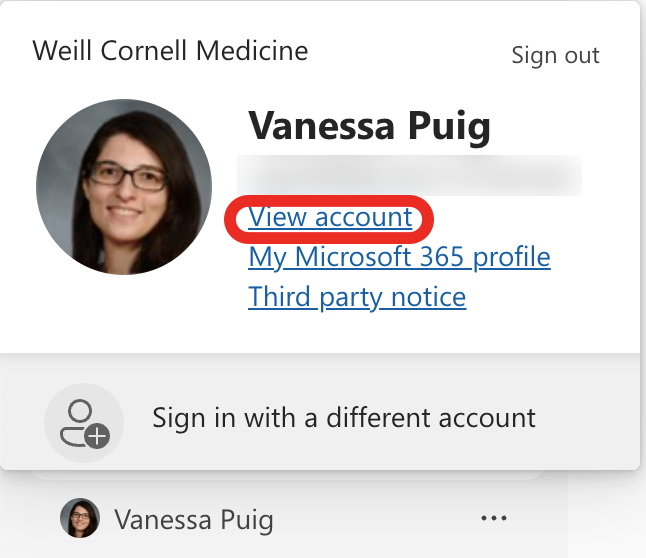
1. Log into O365.weill.cornell.edu and click your name in the lower-left corner of your screen to access your account settings:

2. Select View account.
3. On the following screen, select Security info in the sidebar menu. You will be prompted for multi-factor authentication again.
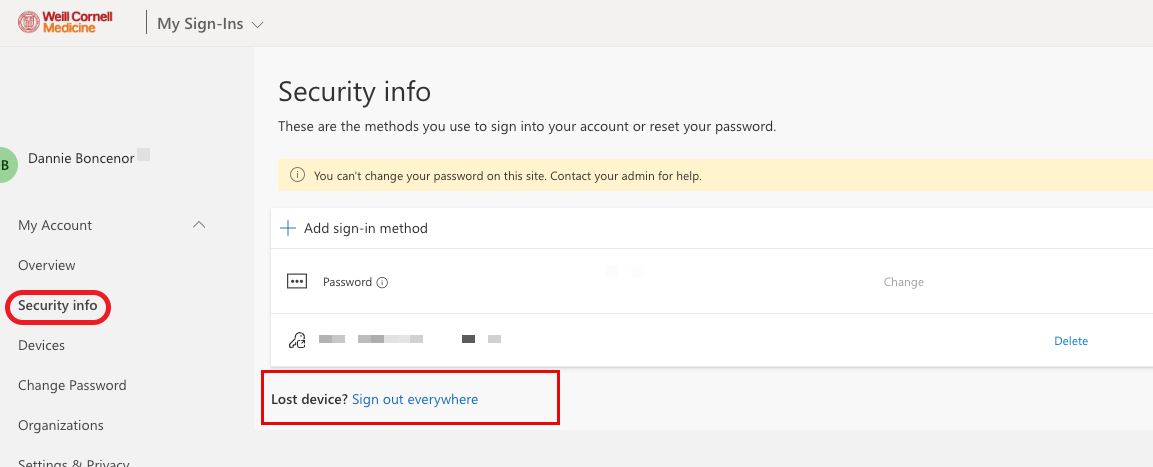
4. Select Sign out everywhere.
5. A pop-up message will appear asking you to confirm your decision. Select Ok.

Once you select Ok, you will be signed out of all of your Microsoft applications and other applications which use your Microsoft account. The next time you log back into a Microsoft application, like Outlook, you will be prompted to sign in with your credentials to start a new session. This will eliminate receiving more Duo prompts after you have already signed in.
How Will This Affect You?
If you’ve followed these steps and are still unable to prevent multiple login requests on your device, please contact the Service Desk and a technician will assist.