

We encourage all WCM students, faculty and staff to update Duo Mobile to the latest version to benefit from the improved experience and enhanced security features. Please check your device's app store for the latest version of the app.
Note: The Duo Mobile app does not support older versions of certain operating systems and some country locations. Please refer to the following links for a list of supported Mobile OS, country restrictions, and other known issues:
- Duo Mobile Supported Android Versions
- Duo Mobile Supported iOS Versions
- Duo Services Unavailable in Your Current Location
- Duo Mobile Issues in China
- Duo Mobile Update Issue On Some Android Devices
Pre-requisites
Please make sure your are logged into the App Store or Google Play Store.
Identifying Version of Duo Mobile App
1. Open the Duo Mobile app from your mobile device.
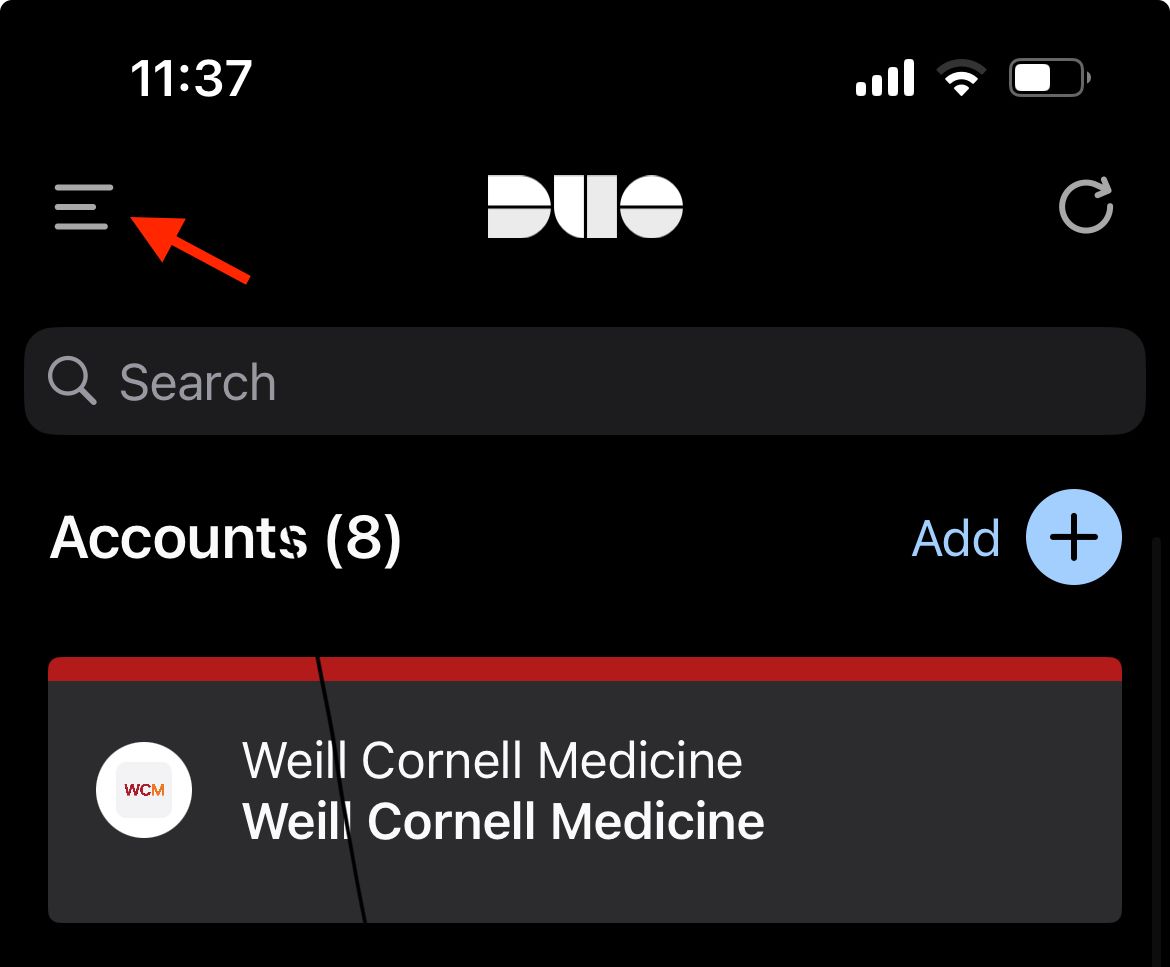
2. Click the hamburger icon (three horizontal lines) at the top left of the screen.
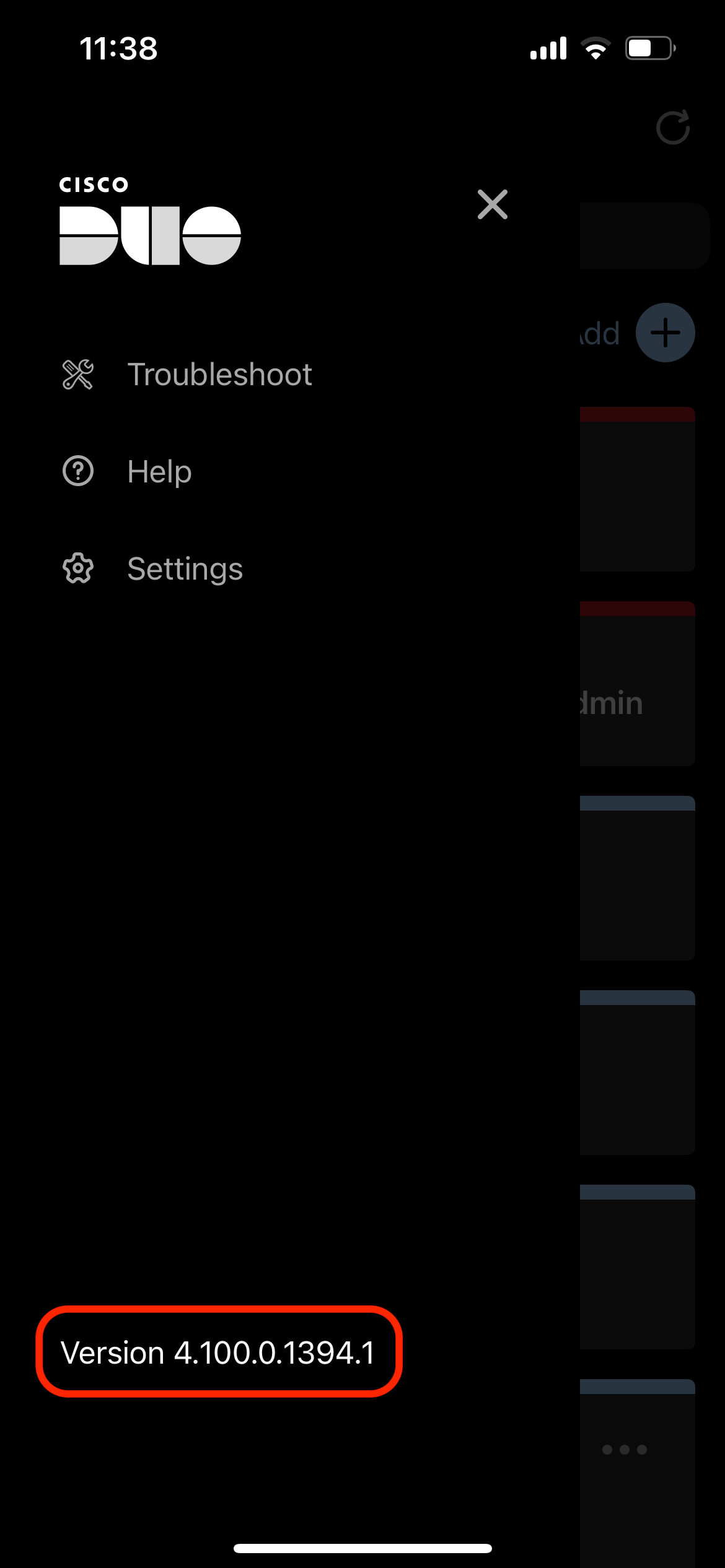
3. The version of Duo Mobile app being used by the device will be listed at the bottom.
Update Duo Mobile in Apple App Store
1. Tap to open the App Store.

2. Tap Search at the bottle right of the screen.

3. Type "Duo Mobile" in the Search bar and locate Duo Mobile app.

Note: If there is an available update for the Duo Mobile app, the button will be labeled as Update. Otherwise, if the button displays Open, it indicates that there are no pending updates available.
4. Tap Update next to the Duo Mobile app to update the app to the latest version.
Update Duo Mobile in Google Play Store
1. Tap to open the Google Play Store.
2. Type "Duo Mobile" in the Search bar and locate Duo Mobile app.

3. Tap Update next to the Duo Mobile app.
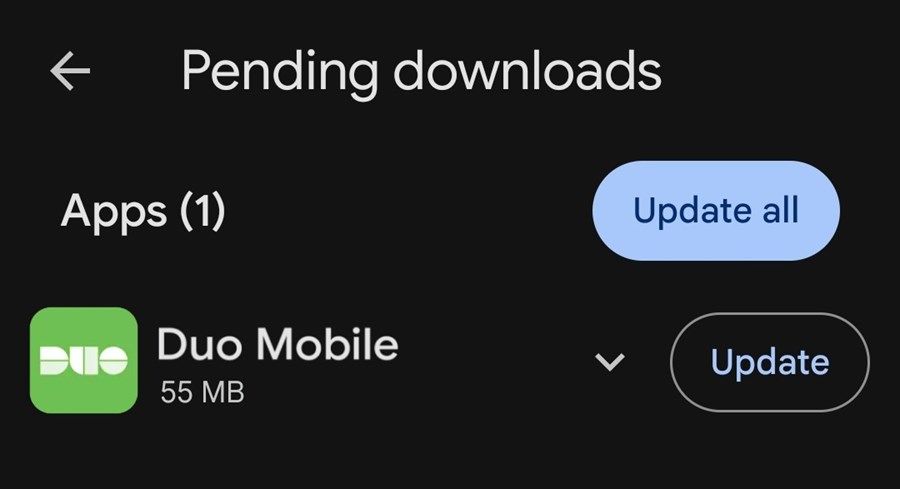
Note: If there is an available update for the Duo Mobile app, the button will be labeled as Update. Otherwise, if the button displays Open, it indicates that there are no pending updates available.