


Microsoft has released its latest Windows 11 version, W11 25H2. You can upgrade your operating system now on your own time via Windows Update. If you don’t perform the upgrade yourself, WCM will push updates beginning in October 2026.
Ready to upgrade to Windows 11 25H2? Here’s how you do it:
- Back up your computer. ITS recommends you back up to OneDrive to ensure none of your data is lost in the process of upgrading.
Microsoft OneDrive lets you store up to 2TB, share, and collaborate with WCM colleagues on files in the cloud. OneDrive is the preferred method for storing WCM high-risk data, like PHI and PII.
For help with OneDrive, read this guide: How to back up data to OneDrive before upgrading to Windows 11
2. Install the upgrade. The Windows 11 25H2 upgrade will appear as a notification icon in the lower-right corner of your screen. If you do not see the notification, your device may not be eligible for the upgrade. For example, you may still be running Windows 10, or your device may already be on the latest available version of Windows 11. If you do not see the 25H2 update, please install all required updates.

Click the icon and the following screen will appear. Click Download & install to install the update.
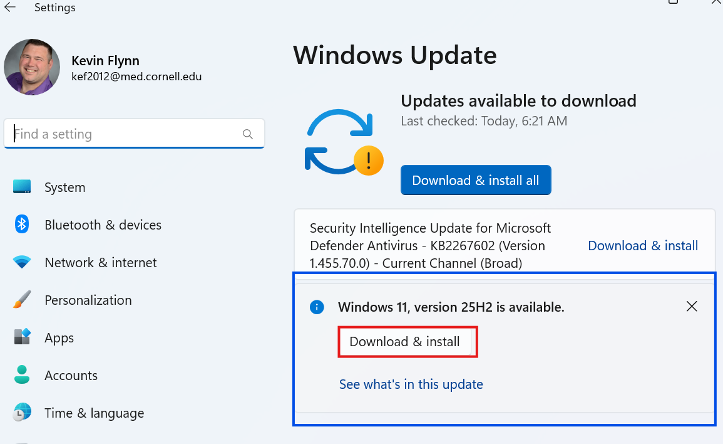
- For help with installation or if the upgrade notification is not visible, read this guide: How to update to Windows 11 v. 25H2
Other notes on the Windows 25H2 update
- Your computer may restart several times during this process.
- On average, the update takes 45-90 minutes once downloaded.
Need help?
If you have questions or concerns email Windows11@med.cornell.edu, or contact the ITS Service Desk. Please include your computer’s name (host name) in your email subject line or body. This can be found in the bottom left-hand corner of your screen, where your OS version is displayed.
